
How to manage your guest list and RSVP responses
The guest list is the foundation of a seating plan. DecoSublim lets you add each person, track RSVP responses, organize groups, and quickly filter seated or unseated guests.
1. Add each guest with the information you need
Select Add Guest and enter the person's name. The same form lets you choose a group, RSVP status, adult or child, gender, and a useful planning note.
Use notes for details such as a vegetarian menu, a child seat, or a seating requirement. Keep only the information that is genuinely needed for the event.
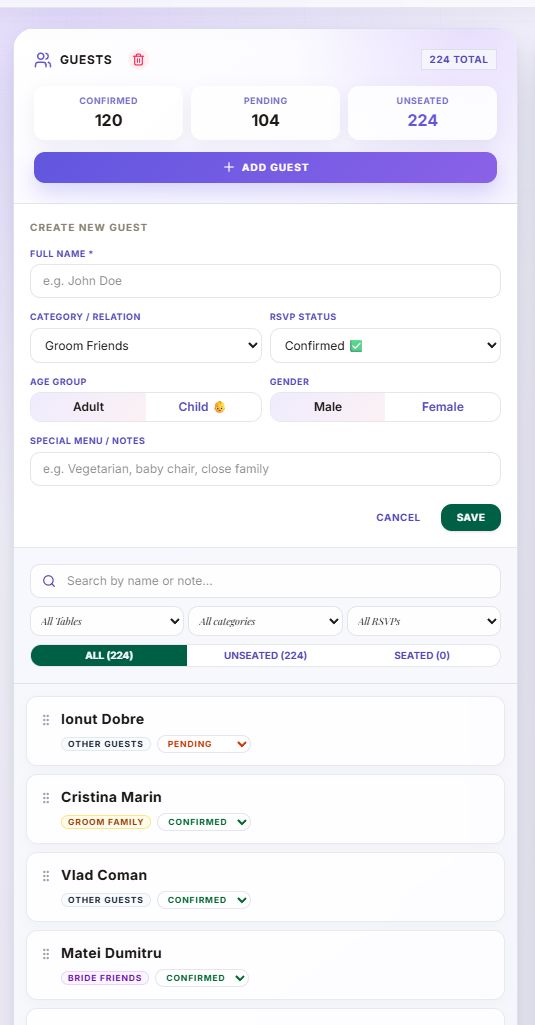
- The guest name is required.
- Group and RSVP use selectable values.
- You can mark the guest as an adult or child and male or female.
- The note is optional and can be searched later.
2. Update Confirmed, Pending, or Declined
Every guest has an RSVP selector directly in the list. Change a response between Confirmed, Pending, and Declined without opening the full edit form.
The summary at the top shows total guests, confirmed responses, pending responses, and the number of unseated people. These figures update when the data changes.
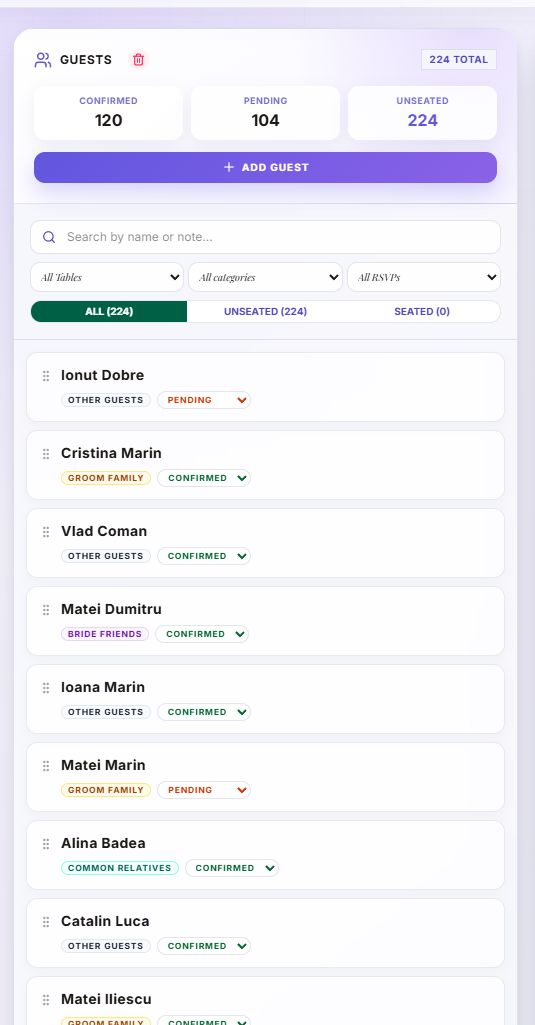
- Confirmed: the person has accepted the invitation.
- Pending: the response is not final yet.
- Declined: the person remains in the list but is excluded by Auto Seat.
- Unseated shows how many guests do not have a table seat yet.
3. Use groups, search, and filters
The available groups are Groom Family, Bride Family, Groom Friends, Bride Friends, Colleagues, Common Relatives, and Other Guests. They make it easier to find social circles and are used as a reference by Auto Seat.
Search checks both guest names and notes. Combine it with table, group, and RSVP filters, then display All, Unseated, or Seated guests.
- Filter by a table after you begin assigning seats.
- Choose a group to display one social circle.
- Show only Confirmed, Pending, or Declined responses.
- Use Unseated to review the remaining assignments.
4. Edit details without recreating the guest
The Edit button opens inline fields for name, gender, group, adult or child, and notes. RSVP is changed separately from the selector visible on every row.
Delete removes the guest from the event. If the person had a seat, the planner also clears that table place. Use deletion only when you want to remove the record, not simply when the guest has declined.
- Correct the name or group from Edit.
- Update notes when new requirements appear.
- Change RSVP directly from the guest row.
- Keep declined responses for reference; delete only unnecessary or incorrect records.
5. Review the list before the final seating plan
Before finalizing tables, filter confirmed guests and compare their total with the number given to the venue. Review pending responses separately and set a deadline for the final answer.
Open Unseated to find everybody without a place, then review children and important notes. Once the list is stable, continue with tables, the room layout, and print materials.
- The confirmed guest total is correct.
- Declined guests do not occupy table seats.
- Confirmed people appear under Seated before printing.
- Important notes have been reviewed by the organizer.
Guest-list and RSVP questions
Can I change RSVP without editing every detail?
Yes. Every row has a selector for Confirmed, Pending, or Declined, and the change is saved without opening the full form.
Can I search for a guest by their note?
Yes. Search checks both the guest name and the text stored in notes.
How do I display only guests without a seat?
Select the Unseated tab in the filter area. The displayed count shows how many people are not assigned to tables.
What happens when I delete a seated guest?
The guest is removed from the event and the occupied table seat is cleared automatically.
 DecoSublim Workshop
Custom Decorations & Accessories for Your Wedding
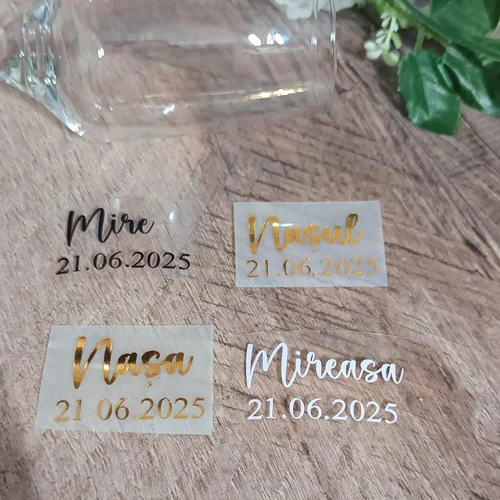
Beyond table planning, personalize every wedding detail: bespoke layered wooden names, glass vinyl stickers, custom cake toppers and engraved keepsake boxes.



Organize your guest list in one place
Track responses, groups, notes, and table assignments directly in DecoSublim. Planning is free; Print / PDF is activated separately only when you need it.
Create a free account